![401GO-Logo-LG.png]](https://help.401go.com/hs-fs/hubfs/401GO-Logo-LG.png?height=50&name=401GO-Logo-LG.png)
There are three ways to submit payroll contributions:
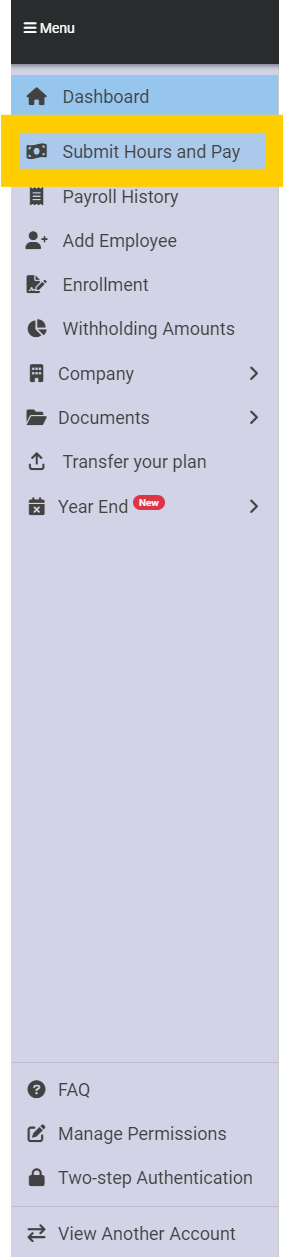
- Navigate to Menu > Submit Hours and Pay
- Navigate to Menu > Dashboard and click the Submit hours and pay button
- Navigate to Menu > Payroll History and click Run Payroll
Start this process after you have submitted payroll in your payroll system.
Withholding Amounts
When you submit payroll the first time, you will be prompted to enter in hours and gross pay year-to-date. Use the data from your company’s payroll system to calculate this information. Once you have updated the hours and gross pay, click Continue.
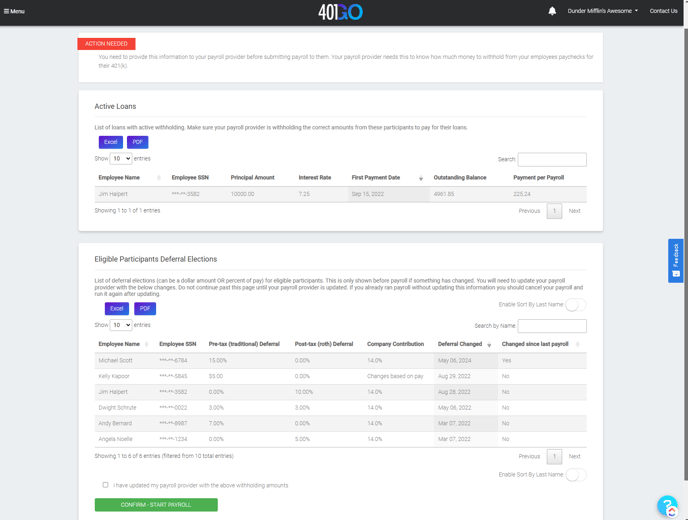
If you have had any employee contribution changes since the last payroll, navigate to the withholding amounts page, review the list for changes and ensure they are up to date in payroll before continuing. Once you have done this, check the box, “I have updated my payroll provider with the above withholding amounts” and click Confirm - Start Payroll.
Add a Payroll
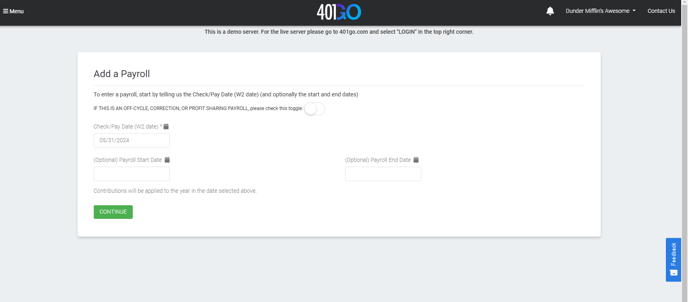
When you submit payroll data in 401GO, you will reference the pay date or check date for the payroll. In this example, it is the last day of the month. You can add the payroll start and end dates, but this is not required.
If you are submitting an off-cycle, profit-sharing or correction payroll, toggle the switch at the top of the page. This is not typical and you will mostly leave this as is.
Once you are done, click Continue.
Submitting Payroll Data in 401GO
There are two ways to submit the payroll data in 401GO. The first is to enter it manually, based on information from your payroll system. The second is to upload a payroll file by clicking the button at the top of the page.
Upload a Payroll File
When you download the payroll file, it will save as an Excel file. Update the information for each column to match payroll information. The columns are:
- SSN *
- Name*
- Hire Date*
- Hours Worked, Current Payroll
- Gross Pay, Current Payroll
- (Optional) Pre-Tax Deferral $
- (Optional) Post-Tax Deferral $
*These columns should be left as is to prevent errors when uploading the information.
Once you’re done, upload the saved Excel file by dragging it to the top of the page and dropping it or clicking the box and selecting the file. Once the file shows in the white box, click Submit Payroll File. This will automatically take you to the next page.

Manually Enter the Hours and Gross Pay
If you would prefer to manually enter the hours and gross pay for the payroll information, you can do so beneath the payroll file section. You will need to know the hours and gross pay for each W2 employee, even those who are not currently eligible to participate in the 401(k) plan.
If you have employees who are salaried/paid the same amount each pay period, you can select the Remember box and the system will automatically fill in the same information the next time you submit payroll in 401GO.
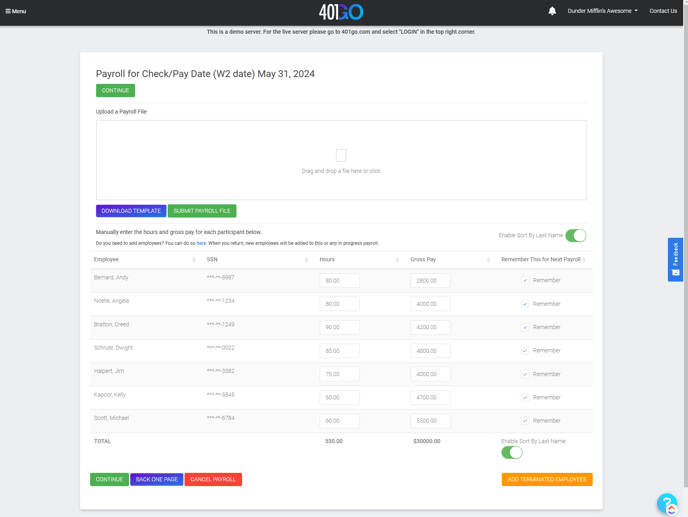
Payroll for Check/Pay Date (W2 date)
You must verify the information 401GO calculates to ensure the employee contribution information matches your payroll records. When you are reviewing the information, please be sure to check:
- That the numbers match
- That the allocation is correct – pre- vs. post-tax (Roth)
If the deferrals listed on this page are correct you can scroll down and click Submit Payroll. If any of the information is incorrect, update it to match your payroll record. The employee deferral information must match payroll, as that is what will be reported on the employee’s W2.
If your plan offers an employer match, we recommend that you defer to 401GO’s calculation. Please review for accuracy; however, 401GO will always use the contribution formula from your plan documents to ensure that the information is correct.
Once you have confirmed the information is correct, you will see the ACH date beneath the totals. The system will default to three days out from the date it is submittedIf needed, you can click on the box to edit the date, but we recommend leaving it as is.
If you only have one bank account, you can leave the setting on Default. If you have more than one bank account, you can choose to override the ACH.
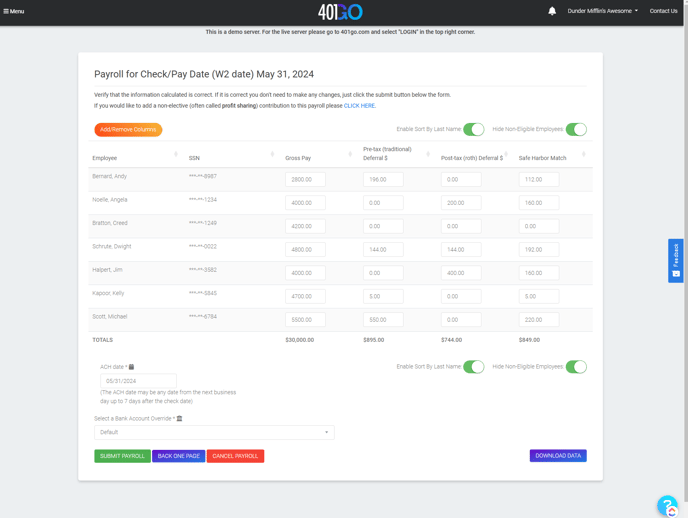
When you’re done, click Submit Payroll to finish. You will be redirected to the Payroll History page and will receive a Success notification.