![401GO-Logo-LG.png]](https://help.401go.com/hs-fs/hubfs/401GO-Logo-LG.png?height=50&name=401GO-Logo-LG.png)
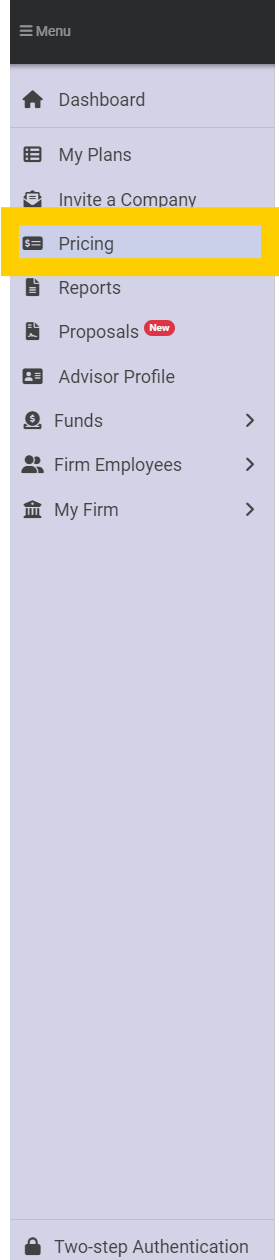
This tab allows you to manage your own custom pricing tiers.
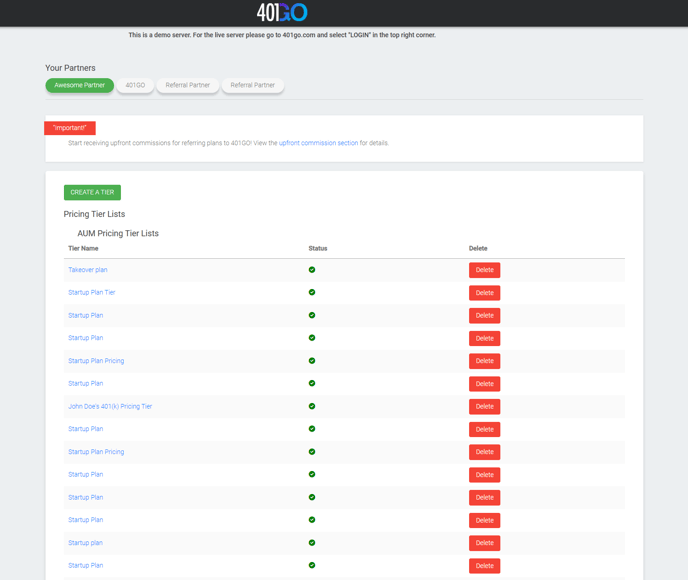
You can create multiple pricing tiering for your firm and your partners.
To manage a specific partner pricing tiering, click on the specific Advisor Partner you are looking to view or update. If you can't locate a partner, you can add them into the system under "Firm Employees" tab and select "Add Employee". Make sure to fill out all required information and if the partner would like to connect to a TAMP (Fi360, RPAG, LPL, Envestnet, Orion) you must input the individual CRD. Once added, return to the "Pricing" tab and select the newly entered Partner.
Click on "Create a Tier" and following the steps outlined below:
- Enter in the tiering name and click "Continue."
- Select from either "Aum Fee" or "Flat Fee."
- Aum Fee:
-
- Enter in the initial AUM BPS amount and click "Save."
Below are examples of how to enter a BPS into this section (max BPS = 100)
Percentage (if % is) Basis Points (enter this into box) 0.01% 1 BPS 0.05% 5 BPS
0.10% 10 BPS 0.30% 30 BPS 0.50% 50 BPS 0.75% 75 BPS 1% 100 BPS (Max) When setting up AUM Fee, we bill the following month, so it's not in advance for AUM.
- Enter in the initial AUM BPS amount and click "Save."
-
- Aum Fee:
-
- Are there any additional one-time or recurring fee that is in this tier?
- "Yes"
- Add a Fee Description (which is shown on fee discloser)
- Add a Fee Amount
- Select Payment Frequency:
- One-Time (Pulls on the first of the next month (or if it's a new plan, the first month after their start date with us)
- Weekly (Pulls every Monday)
- Bi-Weekly (Pulls every other Monday)
- "Yes"
- Are there any additional one-time or recurring fee that is in this tier?
-
-
-
-
- Semi-Monthly (Pulls on the 15th and the 30th of the month)
- Monthly (Pulls the first business day of each month)
- Quarterly (pulls the first day of each calendar quarter)
- Semi-Annually (pulls the first day of July and January)
- Yearly (Pulls at the first of the year. If submitting during the year, it will not pull until the 1st of the following year. Example: submitting yearly Fee Amount on 8/1, the pull will automatically generate on 1/1.)
-
- "No" - no further action needed.
- Click "Save."
-
-
- If you would like to update your AUM Tiers, scrolling down and under "Your Answers," click "Edit."
- You can edit the AUM Fee (BPS) and add in a AUM Limit To ($) to create additional tiers. Click "Save" under the Edit Column. Continue adding in tiering until you are happy with the tiering structure.
- You can edit the AUM Fee (BPS) and add in a AUM Limit To ($) to create additional tiers. Click "Save" under the Edit Column. Continue adding in tiering until you are happy with the tiering structure.
- Banded: (slider option): Slide this option to "YES" or until it turns green if you want a Banded AUM applied to your tiering. Examples below
- Non Banded:
Two tiers (30 BPS up to 1000 & 25 BPS 1000+ and AUM currently at 2000) = 25 BPS AUM fee - Banded:
Two tiers (30 BPS up to 1000 & 25 BPS 1000+ and AUM currently at 2000) = 30 BPS on 1000 = 25 BPS on 1000+
- Non Banded:
- Once completed, click on "Finish adding Tiers"
- "Flat Fee"
-
- Fee Description (which is shown on fee discloser)
- Add a Fee Amount
-
- Select Payment Frequency:
- One-Time (Pulls on the first of the next month (or if it's a new plan, the first month after their start date with us)
- Weekly (Pulls every Monday)
- Bi-Weekly (Pulls every other Monday)
- Select Payment Frequency:
-
-
-
-
-
- Semi-Monthly (Pulls on the 15th and the 30th of the month)
- Monthly (Pulls the first business day of each month)
- Quarterly (pulls the first day of each calendar quarter)
- Semi-Annually (pulls the first day of July and January)
- Yearly (Pulls at the first of the year. If submitting during the year, it will not pull until the 1st of the following year. Example: submitting yearly Fee Amount on 8/1, the pull will automatically generate on 1/1.)
-
- "No" - no further action needed.
- Click "Save."
-
-

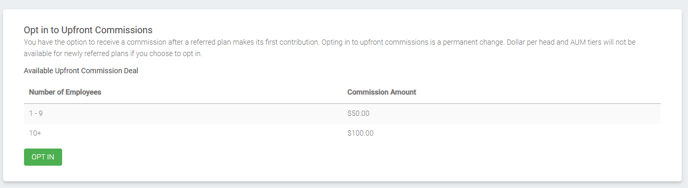
This option is for those employees who would be allowed to accept referral payments. If you would like to opt in, simply click on the "OPT IN" button.