![401GO-Logo-LG.png]](https://help.401go.com/hs-fs/hubfs/401GO-Logo-LG.png?height=50&name=401GO-Logo-LG.png)
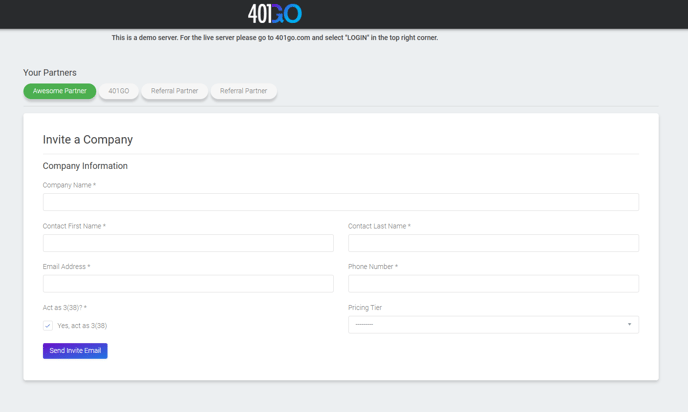
"Invite a Company" allows you to send out an email directly to your client prospects that auto generates the link for them to set up a 401GO retirement plan. It allows you to select if your firm would like to act as a 3(38) and control advisor pricing.
- Act as a 3(38)?* - Click this box if you firm will be acting as a 3(38). Otherwise, the default would be 401GOs 3(38).
- Pricing Tier - Pick from the drop down pricing tier option that is funds under the "Pricing" tab. If you want to create a new pricing tier, you will have to return to the "Pricing" tab and enter in the new pricing tier for your firm. Once entered, return to the "Invite a Company" tab to select from the newly created "Pricing Tier" from the drop down options.
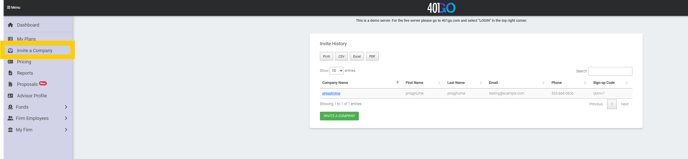
Make sure fill in all required (*) entry boxes. Once all required boxes are completed, select "Send Invite Email"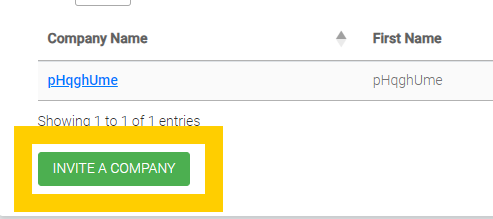
"Your Partners" tab allows you to select which advisor partner you would like to send out the invite on behalf of. If you don't see an option to select one of your partners, return to the "Advisor Profile" tab and import the missing advisor profile. Once the partner has been entered, return to the "Invite a Company" tab and select the newly imported advisor profile now located under "Your Partners."