![401GO-Logo-LG.png]](https://help.401go.com/hs-fs/hubfs/401GO-Logo-LG.png?height=50&name=401GO-Logo-LG.png)
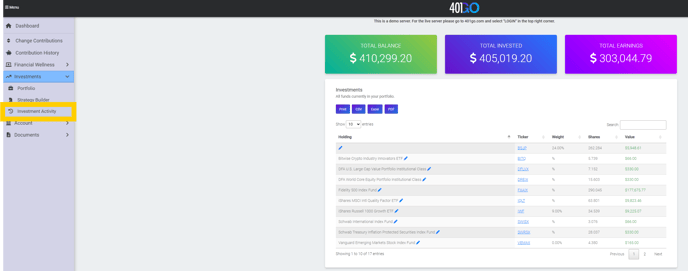
To access information about your Investments, navigate to the Menu and make your selection from the dropdown menu which includes Investment Portfolio, Strategy Builder and Investment Activity.
The Portfolio section displays two white boxes. The box on the left showcases all available investment options. By clicking on each investment, you can access detailed information. If you need more detail, click on the link to the external website. To add an investment to your portfolio, simply click on the + Add to Portfolio button in blue. The chosen investment will then appear in the box on the right. After adding an investment, you can allocate the desired percentage for each one. Click the green Save button to save your changes.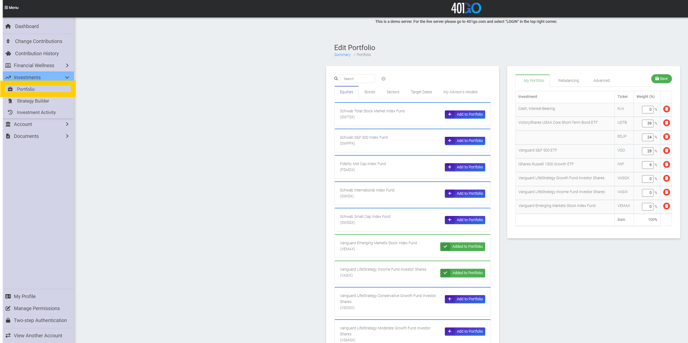
The Strategy Builder is designed to assist you in reaching your retirement goals. By answering the provided questions, you will receive personalized suggestions on how to achieve your desired financial objectives. (May not be available for all participants.)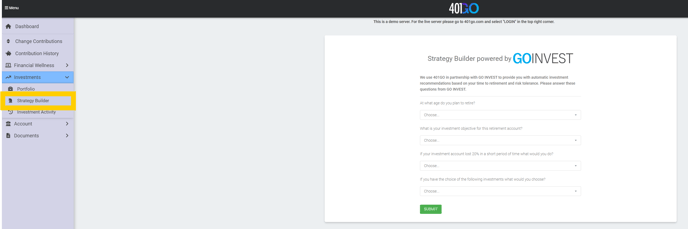
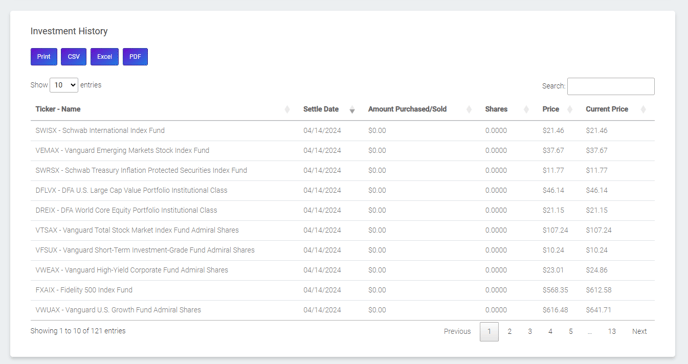
The Investment Activity option provides a comprehensive overview of your investments. By clicking on the blue pencil icon, you can easily access your portfolio to make changes to your investment selections without having to navigate back to the main menu. Additionally, clicking on the blue highlighted Ticker will direct you to a website to view detailed information about a specific investment. This section also displays your investment history. You can choose to print or download this information in various formats by clicking on the corresponding blue squares.