![401GO-Logo-LG.png]](https://help.401go.com/hs-fs/hubfs/401GO-Logo-LG.png?height=50&name=401GO-Logo-LG.png)
Click on the link to be walked through our 401GO - Partner Portal.
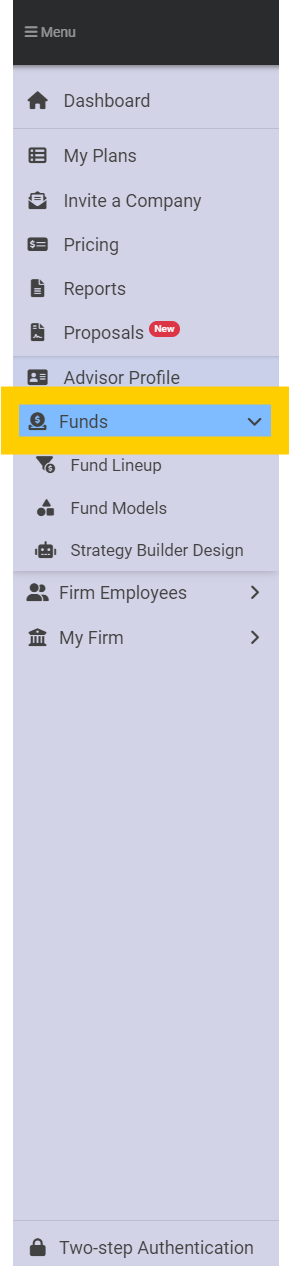
As a 3(38) Advisor, the "Funds" Option will allow you to build your lineup for your plans, add and delete funds from the lineup, and create or edit your Models and Strategy Builders for your plans that you are acting as a 3(38) advisor.
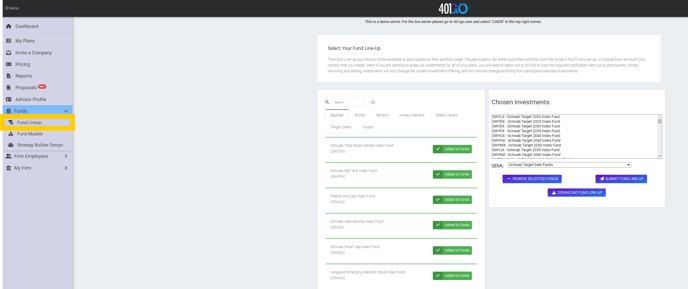
Building your 3(38) advisors lineup is easy without the need for paperwork!
- Select the applicable fund category tab
- Type the ticker or name of the fund in the search box
If you would like to view the funds performance or additional information about the fund; just click on the name of the fund and a drawer will open below with this information.
If you would like to add the fund, simply clicking on "+Add to funds."
The additional fund(s) will be added to the right side of the screen under "Chosen Investments:." Once you have completed the fund lineup change, click on "Submit Fund Line-Up" to save the changes.
You can also perform the following actions on this screen:
- Remove Selected Funds: Click on the fund under the "Chosen Investments:" then click "Remove Selected Funds." Repeat this process for any additional funds of which you would like to remove from the lineup. Once finished, Click on "Submit Fund Line-Up."
- Change QDIA: From the drop down "QDIA" box, you can chose from the available selection. Once finished, Click on "Submit Fund Line-Up." (If you want the funds that are available in the QDIA also available in the lineup, make sure to add those funds separately under the "Chosen Investments:")
- If you would like to Download your 3(38) lineup, you can do so by clicking on "Download Fund Line-Up." The spreadsheet with provide you this the following information:
- Fund Name
- Ticker
- CUSIP
- Category
- Expense Ration
- Link to additional fund resource
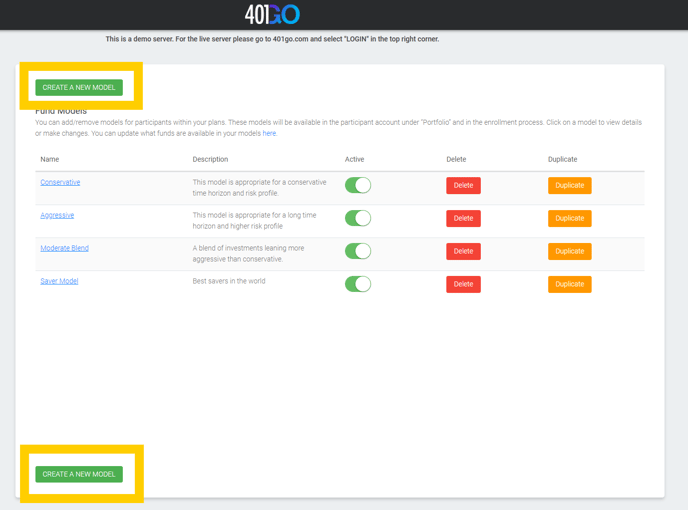
Fund Models: Allow you to create new, remove, or manage your existing models right from the partner 3(38) website.
- To update existing models your have previously created, click
- To turn off the availability of an existing model, move the "Active" slider to the left. You will get the following message: Success! Your model is no longer available to participants. You will have to click "OK" to return to the previous screen.
- To turn on the availability of an existing model, move the "Active" slider to the right (green). You will get the following message: Success! Your model is now available to participants. You will have to click "OK" to return to the previous screen.
- You can even "Duplicate" an exciting model. Once you click on this option, the duplicated model will appear at the bottom of your models list and it default to Active automatically.
- If you need to delete an existing model, click on "delete." You will get the following message: DANGER WILL ROBINSON Note that this is permanent and cannot be undone. Once a model is deleted, it cannot be restored. Are you sure you want to proceed? You have two options "Cancel" or "OK." You will need to click on either option to return to the previous screen.

"Create A New Model" will allow you to make available fund models that participants can select in their portfolios from the participant website.
click on "Start" when you are ready to proceed.
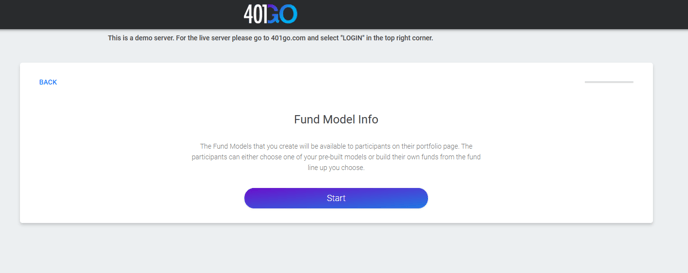
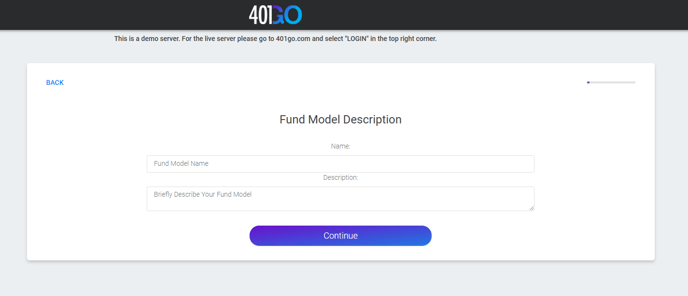
Enter in the Fund Model Name and Briefly Describe Your Fund Model. When completed, click on "Continue." If the Description seems to be short or missing, you may receive the following message: Model Description Please confirm you don't want a useful description. This will be what a participant will see in combination with the name to decide on which model to use. Press OK to continue or cancel to edit the description further. You have two options "Cancel" or "OK." You will need to click on either option to return to the previous screen or to move forward.
The following screen will be Investments:
- Select the applicable fund category tab
- Type the ticker or name of the fund in the search box
If you would like to view the funds performance or additional information about the fund; just click on the name of the fund and a drawer will open below with this information.
If you would like to add the fund, simply clicking on "+Add to funds."
The additional fund(s) will be added to the right side of the screen under " Investments." You will need to enter in a % with a sum equal to 100% before you will be able to "Continue."
The final screen is the confirm that you have "Finished your Model." You will have two options.
-
- Yes: You are confirming that the model is complete and should be immediately available to participants. If this is selected, you will get the following message: Success! Your model has been saved. You will have to click "OK" to return to the "Fund Models" screen with the "Active" slider set to Green.
- NO: You are still editing this model and would like to save and return later. If this is selected, you will get the following message: Success! Your model has been saved. You will have to click "OK" to return to the "Fund Models" screen with the "Active" slider set to inactive.
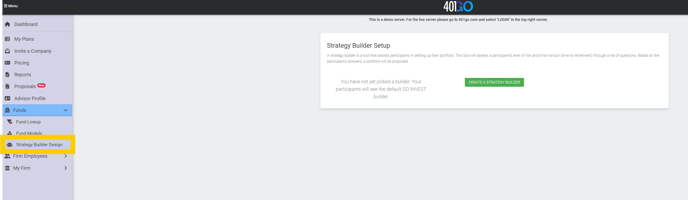
Strategy Builder Setup: Is a tool that helps your participant set up their asset allocation. Through a series of questions, the participants will assess their level of risk and time to retirement, and produce a proposed the appropriate model based on their answers to those questions. This section allows you to create or edit your existing strategy builder.
- Edit Your Builder: Will take you into the strategy builder that was previously build and can be updated.
- Create A Strategy Builder: This allows you to create a new strategy builder.
-
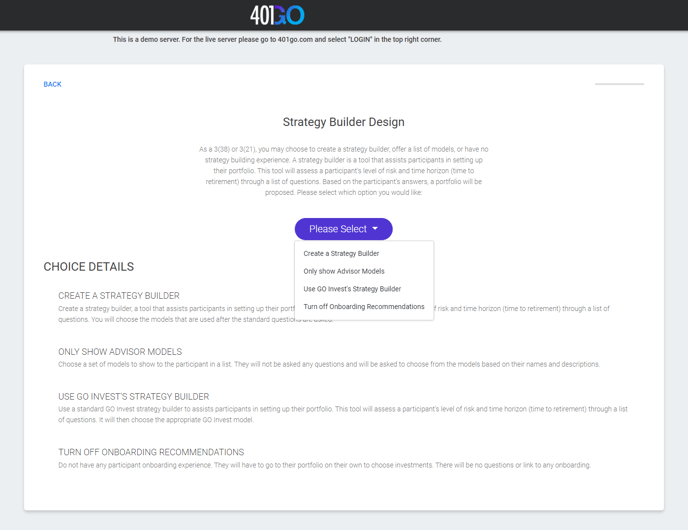
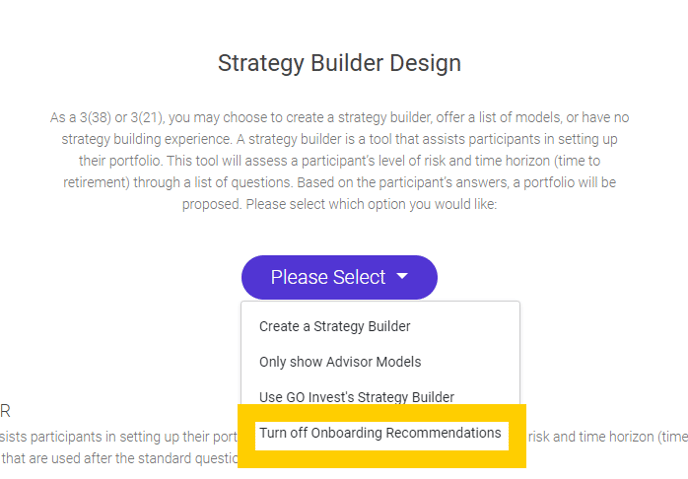
- The First step is to select from the drop down for the following options:
- Create a Strategy Builder
- Only show Advisor Models
- Use Go Invest's Strategy Builder
- Turn off Onboarding Recommendations
- The First step is to select from the drop down for the following options:
-
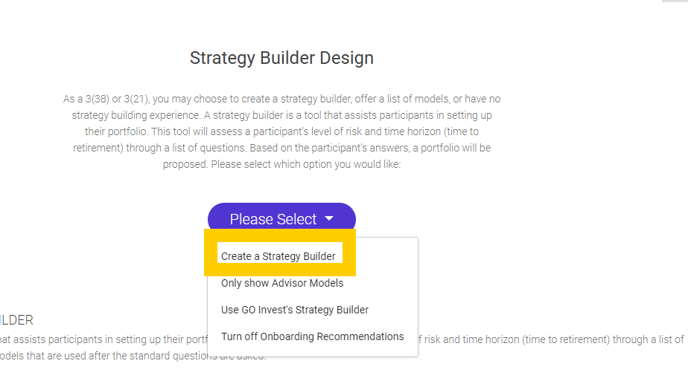
- Create a Strategy Builder: You choose the models that are used after the standard questions are asked.
-
- Most Conservative Model: Select your most conservative model(s) from the drop down. The drop down option will be reflecting the models you have already created in the "Fund Models" section.
- Most Aggressive Model: Select your most aggressive model(s) from the drop down. The drop down option will be reflecting the models you have already created in the "Fund Models" section.
- Other Models: Select either "Yes" or "No"
- Yes: From the drop down, select another model(s) that you wish to add. The drop down option will be reflecting the models you have already created in the "Fund Models" section. You can also delete a pre selected model by clicking on the red trashcan icon, but you must have at least two models in order to delete from this screen. Once you are done adding your additional model(s), click "Continue."
- Explore Results: Use the two sliders on this screen to evaluate how the allocation will breakdown based on the two factors of Time Horizon and Risk Tolerance. If you do not like the results of these sliders, you can go back and edit the previous selected models and return to reevaluate the change is allocation breakdown. Once you are happy with the results, click "Continue."
- Finish your Strategy Builder: This screen gives you two options:
- Yes: You will get the following message: Success! Your strategy builder has been finished and will be available to participants! You will have to click "OK" to return to the "Strategy Builder Design." You can edit this strategy builder at any time by clicking on "Edit Your Builder."
- No: You will get the following message: Success! Your strategy builder has been saved but is not yet available to participants. You can return to this page later to update it or make it available. You will have to click "OK" to return to the "Strategy Builder Design." You can return and finalize this Strategy builder at any time by clicking on "Finish Your Builder."
-
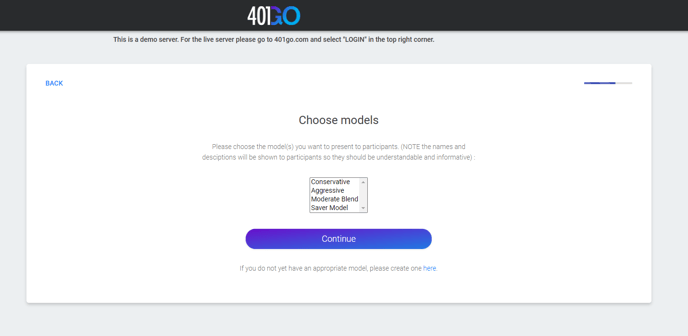
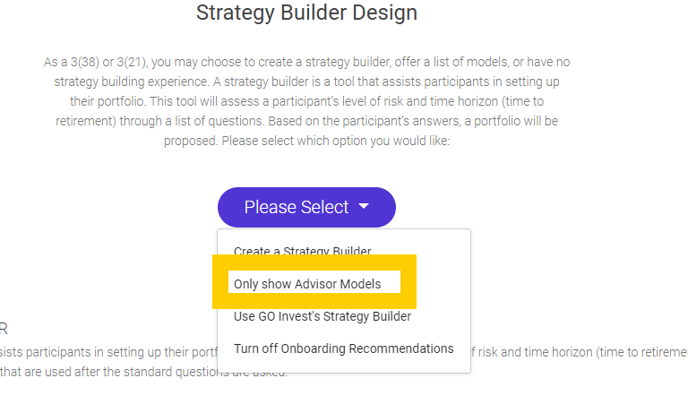
- Only Show Advisor Models: This option only reflect your advisor models and does not take participants through a list of risk tolerance or time horizon questions.
-
- Choose models: Select the model(s) of which you would like the participants to choose from. The drop down option will be reflecting the models you have already created in the "Fund Models" section.
- Finish your Strategy Builder: This screen gives you two options:
-
-
- Yes: You will get the following message: Success! Your list of models has been finished and will be available to participants! You will have to click "OK" to return to the "Strategy Builder Design." You can edit this strategy builder at any time by clicking on "Edit Your Builder."
- No: You will get the following message: Success! Your list of models has been saved but is not yet available to participants. You can return to this page later to update it or make it available. You will have to click "OK" to return to the "Strategy Builder Design." You can return and finalize this Strategy builder at any time by clicking on "Finish Your Builder."
-
-
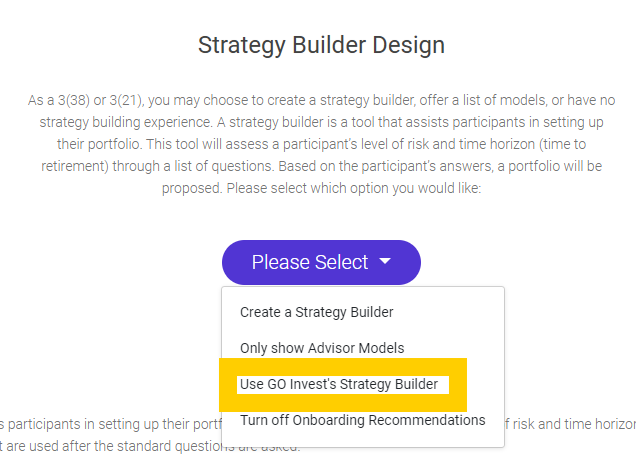
- Use GO Invest's Strategy Builder: This option used GO Invest Strategy Builder standard questions and Go Invest's Models.
-
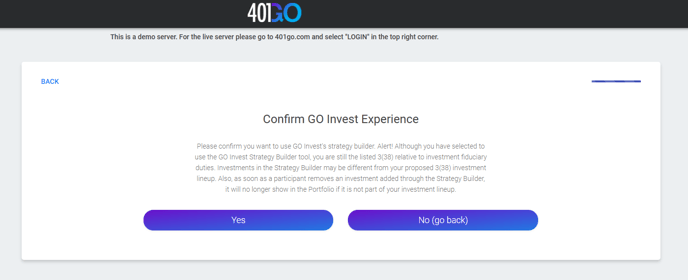
- Confirm GO Invest Experience: This screen gives you two options:
-
-
- Yes: You will get the following message: Success! You have set to use GO Invest's Strategy Builder. You can return to change this later. You will have to click "OK" to return to the "Strategy Builder Design." You can edit this strategy builder at any time by clicking on "Edit Your Builder."
-
-
-
- No: This will take you back to the previous screen "Strategy Builder Design."
-
-
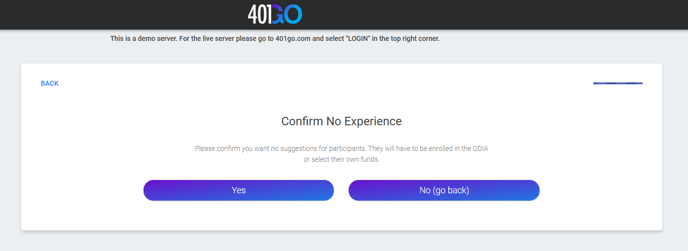
- Turn Off Onboarding Recommendations: No models or questions will be offered to participants. Each participant will have to choose their own investments.
-
-
- Yes: You will get the following message: Success! You have set to have no strategy builder. You can return to change this later. You will have to click "OK" to return to the "Strategy Builder Design." You can edit this strategy builder at any time by clicking on "Edit Your Builder."
- No: This will take you back to the previous screen "Strategy Builder Design."
- Yes: You will get the following message: Success! You have set to have no strategy builder. You can return to change this later. You will have to click "OK" to return to the "Strategy Builder Design." You can edit this strategy builder at any time by clicking on "Edit Your Builder."
-