![401GO-Logo-LG.png]](https://help.401go.com/hs-fs/hubfs/401GO-Logo-LG.png?height=50&name=401GO-Logo-LG.png)
The Dashboard tab, under Menu, allows you to view all your plans and key plan features and information at a glance.
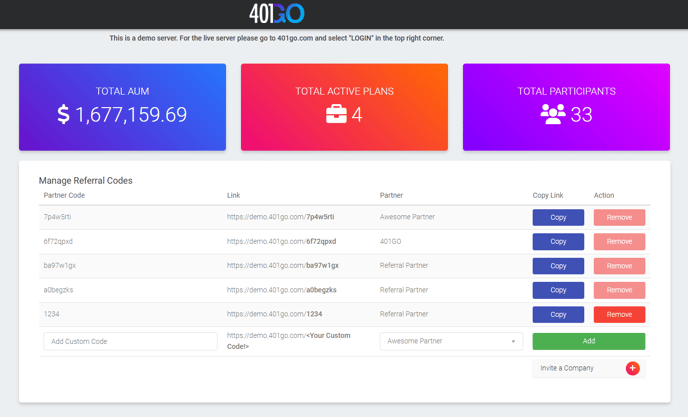
- Total AUM: All the assets under management from your plans
- Total Active Plans: All your plans under management
- Total Participants: All eligible participants
- Manage Referral Codes: Allows the partner to manage email invites that go to clients looking to start or convert their retirement plans. These specific links allow the partner to embed their advisor pricing and 3(38) option. If you would like to embed a this link into a email outside the website, client on "Copy" and this will allow you to paste the link inside the email that is drafted outside the 401GO website. You can also remove referral code if it will no longer apply to future campaigns.
- Selecting "Invite a Company" takes you to the menu tab that will
allow you to send out an email directly to your client prospects that auto generates the link for them to set up a 401GO retirement plan. It allows you to select if your firm would like to act as a 3(38) and control advisor pricing.
- Act as a 3(38)?* - Click this box if you firm will be acting as a 3(38). Otherwise, the default would be 401GOs 3(38).
- Pricing Tier - Pick from the drop down pricing tier option that is funds under the "Pricing" tab. If you want to create a new pricing tier, you will have to return to the "Pricing" tab and enter in the new pricing tier for your firm. Once entered, return to the "Invite a Company" tab to select from the newly created "Pricing Tier" from the drop down options.
- Selecting "Invite a Company" takes you to the menu tab that will
- Manage Referral Codes: Allows the partner to manage email invites that go to clients looking to start or convert their retirement plans. These specific links allow the partner to embed their advisor pricing and 3(38) option. If you would like to embed a this link into a email outside the website, client on "Copy" and this will allow you to paste the link inside the email that is drafted outside the 401GO website. You can also remove referral code if it will no longer apply to future campaigns.
-
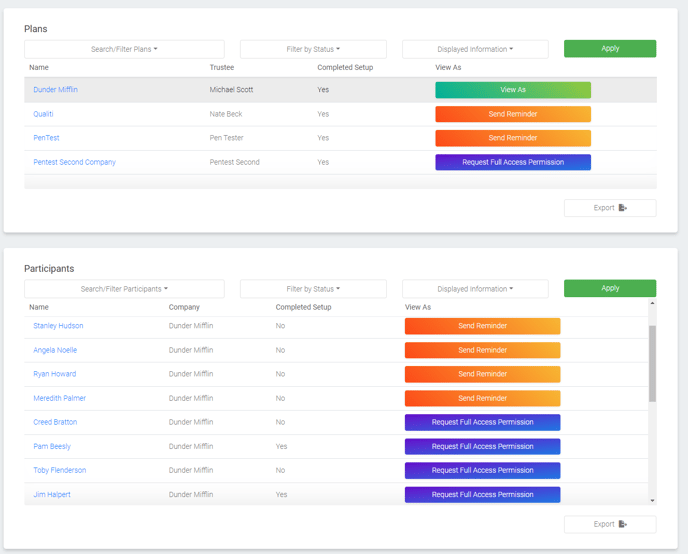
- Plans: This section defaults to reflecting all your Company, Trustee, Completed Setup, and View As information. However, you can simply update your view by clicking on "Displayed Information" There are multiple displays options to choose from. You can also filer by plan name and/or different plan statuses.
- "View As" will reflect the level of access that you have with the company admin site. The following are possible "View As" categories.
- Request Full Access Permissions: (Blue) This means you do not have admin access to your clients website. If selected, an email will go out to the company's email address on file stating that you are requesting full access to their Plan level account. The "View As" will then change to "Send Reminder."
- Send Reminder: (Orange) Means an email has already been sent out to the company's email address on file stating that your have requested full admin access. By clicking on this box again, another email will be sent out again to the client.
- View As: (Green) Clicking on this box will take you automatically to the Admin Screen for the specific client.
- "View As" will reflect the level of access that you have with the company admin site. The following are possible "View As" categories.
- Participants: This section defaults to reflecting all your participants, their company, if the participant Completed Setup, and View As information. However, you can simply update your view by clicking on "Displayed Information" There are multiple displays options to choose from. You can also filer by participant company & name and/or different participant statuses.
- "View As" will reflect the level of access that you have with the participants site. The following are possible "View As" categories.
- Request Full Access Permissions: (Blue) This means you do not have access to the participant's website. If selected, an email will go out to the participant's email address on file stating that you are requesting full access to their account. The "View As" will then change to "Send Reminder."
- Send Reminder: (Orange) Means an email has already been sent out to the participant's email address on file stating that your have requested full access. By clicking on this box again, another email will be sent out again to the participant.
- View As: (Green) Clicking on this box will take you automatically to the participant website for the specific participant.
- "View As" will reflect the level of access that you have with the participants site. The following are possible "View As" categories.
- Plans: This section defaults to reflecting all your Company, Trustee, Completed Setup, and View As information. However, you can simply update your view by clicking on "Displayed Information" There are multiple displays options to choose from. You can also filer by plan name and/or different plan statuses.
-
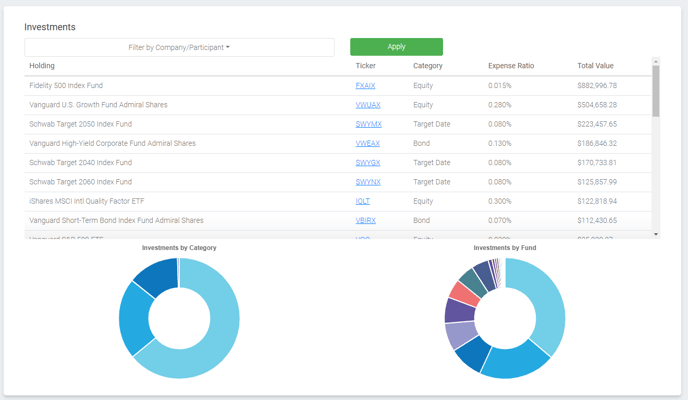
- Investments: The default setting it break down all AUM into each fund. You can filter this view either by company or by participant. This section displays the fund name, ticker, category, expense Ration, and total value in each fund. If you click on the ticker, a new tab will open up with the link to additional fund information. The graphs below also reflect investments broken down by category and also by investments by fund.