![401GO-Logo-LG.png]](https://help.401go.com/hs-fs/hubfs/401GO-Logo-LG.png?height=50&name=401GO-Logo-LG.png)
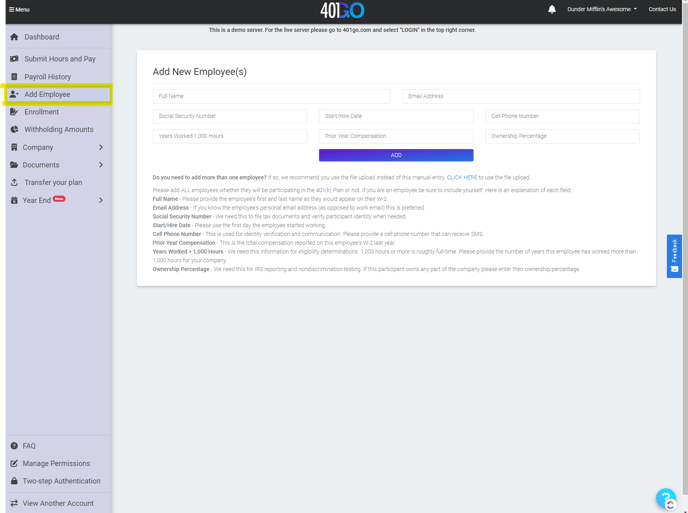
To add an employee, navigate to Menu > Add Employee. You must add all W2 employees per IRS requirements regardless of whether they will participate in your 401(k) plan. To add an employee to 401GOyou need:
- Full Name - Provide the employee’s first and last name as they appear on their W-2.
- Email Address - If you know the employee’s personal email address (as opposed to work email), this is preferred.
- Social Security Number - We need this to file tax documents and verify participant identity.
- Start/Hire Date - This is the first day the employee started working.
- Cell Phone Number - We use this for identity verification and communication. Please provide a cell phone number that can receive texts.
- Prior Year Compensation - This is the total compensation reported on the employee’s W-2 last year.
- Number of Years Worked More Than 1,000 Hours - We need this information for eligibility determinations.
- Ownership Percentage - We need this for IRS reporting and nondiscrimination testing. If the participant owns any part of the company, enter their ownership percentage.
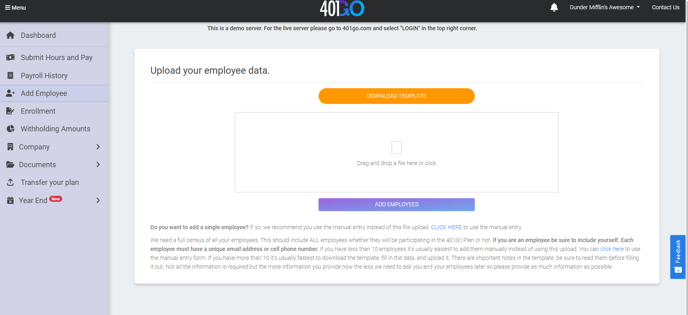
Upload Employee Data
If you are adding more than one employee, you can upload a file instead of entering the data one by one. Download the template by clicking the orange button at the top of the screen.
Once you have completed the file information, drag and drop the file or click the box to select the file. Then click Add Employees.
You will automatically be redirected to the Enrollment page if the file upload is successful. If you receive an error message, please review the information that you need to change and upload the file again.